








A dual- or triple-monitor setup can significantly improve productivity by giving you more screen space for multitasking. Whether you’re working from home, attending online classes, programming, editing videos, analyzing spreadsheets, or trading stocks, multiple monitors allow you to keep several applications open simultaneously without constantly switching windows.
Many people assume that only expensive laptops support multiple displays. In reality, even many budget laptops can connect to two or more external monitors if you choose the right connection method and understand your laptop’s hardware limitations.
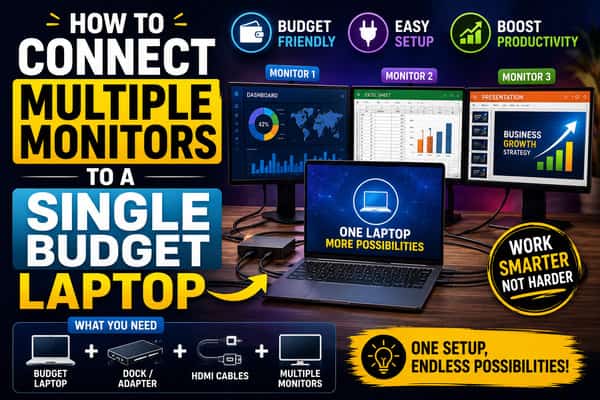
In this guide, you’ll learn how to connect multiple monitors to a budget laptop, the hardware you’ll need, and the best setup options for different laptop configurations.
Why Use Multiple Monitors?
Adding extra monitors can make everyday work much more efficient.
Benefits include:
- Better multitasking
- Larger workspace
- Easier document comparison
- Improved productivity
- More comfortable programming
- Better video editing workflow
- Enhanced online teaching or meetings
Instead of minimizing and reopening applications, you can dedicate each screen to a different task.
Check Your Laptop’s Display Outputs
Before purchasing adapters or monitors, identify the ports available on your laptop.
Common display outputs include:
- HDMI
- USB-C (with DisplayPort Alt Mode or Thunderbolt support)
- Mini DisplayPort
- DisplayPort
- VGA (on some older laptops)
Most budget laptops include at least one HDMI port, while newer models may also feature USB-C.
Method 1: Connect Using HDMI
The simplest method is using the built-in HDMI port.
If your laptop has one HDMI output, you can directly connect one external monitor.
You’ll need:
- HDMI cable
- External monitor with HDMI input
Once connected, Windows usually detects the display automatically.
This method provides the best image quality with minimal setup.
Method 2: Use USB-C Display Output
Many modern budget laptops include a USB-C port.
However, not every USB-C port supports video output.
Check whether your laptop supports:
- DisplayPort Alt Mode
- Thunderbolt
If supported, you can connect an external monitor using:
- USB-C to HDMI adapter
- USB-C to DisplayPort adapter
- USB-C docking station
This can add another display without using the HDMI port.
Method 3: Use a Docking Station
A USB-C or Thunderbolt docking station expands your laptop’s connectivity.
Typical docking stations provide:
- Multiple HDMI ports
- DisplayPort outputs
- USB ports
- Ethernet
- Audio connections
A docking station is one of the easiest ways to connect multiple monitors while reducing cable clutter.
Before purchasing, verify that both your laptop and the dock support multiple external displays.
Method 4: USB Graphics Adapters
If your laptop has only one display output and no video-capable USB-C port, a USB graphics adapter may help.
These adapters connect through a USB port and provide additional display outputs, often using technologies such as DisplayLink.
They are suitable for:
- Office work
- Browsing
- Spreadsheets
- Presentations
- Video conferencing
However, they are generally not ideal for:
- Gaming
- Professional video editing
- High-performance 3D applications
Always confirm compatibility with your operating system before purchasing.
Method 5: Daisy Chaining (Limited Support)
Some monitors support DisplayPort Multi-Stream Transport (MST), allowing one monitor to connect to another.
However, this requires:
- DisplayPort support
- Compatible laptop graphics hardware
- Compatible monitors
Most budget laptops do not support this feature, making it less common for entry-level setups.
Can a Budget Laptop Handle Multiple Monitors?
Yes, but it depends on:
- Graphics processor
- Display outputs
- Processor generation
- Available RAM
- Graphics driver support
Many budget laptops can comfortably run:
- Laptop screen + one external monitor
- Laptop screen + two external monitors
Higher-end configurations may support additional displays, but always check the manufacturer’s specifications.
Configure Displays in Windows
After connecting your monitors:
- Right-click the desktop.
- Select Display Settings.
- Windows will detect connected displays.
- Arrange the monitor positions by dragging them.
- Choose Extend these displays for maximum workspace.
You can also select your primary monitor for the taskbar and desktop icons.
Recommended Monitor Arrangement
For maximum productivity:
- Center monitor: Main work
- Left monitor: Email or reference documents
- Right monitor: Browser, chat, or communication apps
This arrangement reduces window switching and improves workflow.
Hardware Considerations
When using multiple monitors, pay attention to these specifications.
RAM
Recommended:
- Minimum: 8 GB
- Ideal: 16 GB
More RAM improves multitasking across several displays.
Processor
Modern Intel Core i5/Core Ultra 5 or AMD Ryzen 5 processors generally provide sufficient performance for multiple-monitor office workloads.
Graphics
Integrated graphics are adequate for:
- Office work
- Coding
- Internet browsing
- Business applications
Dedicated graphics cards are recommended for professional video editing, 3D rendering, and gaming across multiple displays.
Common Problems and Solutions
Monitor Not Detected
Try:
- Reconnecting cables.
- Restarting the laptop.
- Updating graphics drivers.
- Selecting Detect Displays in Windows Settings.
Wrong Resolution
Open Display Settings and select the monitor’s recommended native resolution.
Flickering Screen
Possible causes include:
- Faulty cable
- Loose connection
- Unsupported refresh rate
- Outdated graphics drivers
Replacing the cable often resolves the issue.
Common Mistakes to Avoid
Avoid these common errors:
- Assuming every USB-C port supports video output.
- Buying incompatible adapters.
- Ignoring graphics hardware limitations.
- Using poor-quality HDMI cables.
- Purchasing a docking station without verifying compatibility.
- Running too many demanding applications on entry-level hardware.
Research your laptop model before purchasing accessories.
Tips for a Better Multi-Monitor Experience
To improve productivity:
- Match monitor resolutions whenever possible.
- Keep displays at similar heights.
- Use adjustable monitor stands.
- Organize cables neatly.
- Enable dark mode if working for long hours.
- Use keyboard shortcuts like Windows + P to switch display modes quickly.
A well-organized workspace improves comfort and efficiency.
Conclusion
Connecting multiple monitors to a budget laptop is easier than many people think. Whether your laptop has an HDMI port, a video-capable USB-C connection, or supports a compatible docking station or USB graphics adapter, there are several ways to expand your desktop and boost productivity. The right setup depends on your laptop’s ports, graphics capabilities, and intended workload.
Before purchasing adapters or accessories, check your laptop’s specifications to ensure compatibility. With the proper hardware and Windows display settings, even an affordable laptop can power a productive multi-monitor workstation for office work, programming, studying, content creation, and everyday multitasking.
FAQs
1. Can a budget laptop support two external monitors?
Yes. Many budget laptops can support two external displays, but this depends on the available ports, graphics hardware, and manufacturer specifications.
2. Can I connect multiple monitors using USB-C?
Yes, provided the USB-C port supports DisplayPort Alt Mode or Thunderbolt. Not all USB-C ports support video output.
3. Do I need a docking station for multiple monitors?
Not always. If your laptop already has multiple display outputs, you may not need one. However, docking stations are convenient for expanding connectivity and reducing cable clutter.
4. Can integrated graphics handle multiple monitors?
Yes. Modern integrated graphics can comfortably support multiple displays for productivity tasks such as web browsing, office applications, coding, and video conferencing. More demanding workloads may require dedicated graphics.
5. Why isn’t my second monitor being detected?
Common causes include incompatible adapters, faulty cables, outdated graphics drivers, incorrect display settings, or a laptop that does not support the desired number of external displays. Checking connections and updating drivers often resolves the issue.