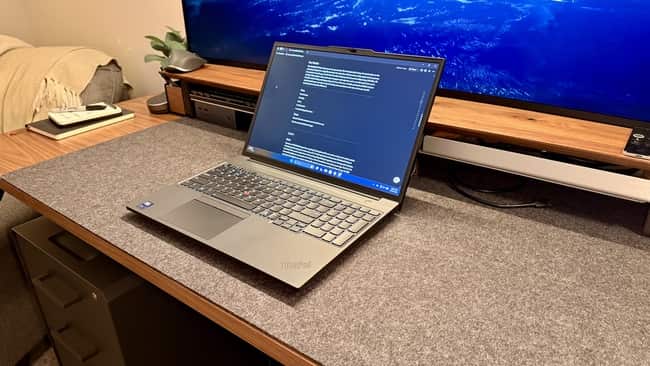
Over time, dust naturally accumulates inside laptops, especially around the cooling vents and fans. As dust builds up, it restricts airflow, causing the laptop to run hotter than normal. This can lead to loud fan noise, slower performance, overheating, and reduced battery life.
While opening a laptop is the most thorough way to clean its cooling system, not everyone is comfortable disassembling their device. Fortunately, you can remove a significant amount of dust and improve airflow using safe cleaning methods that don’t require opening the laptop.

In this guide, you’ll learn how to clean dust from laptop fans without opening the device, the tools you’ll need, and the precautions to take to avoid damaging your laptop.
Why Dust Is a Problem
Laptop cooling systems rely on a fan to pull cool air inside and push hot air out through the vents. When dust accumulates inside these vents, airflow becomes restricted.
Common symptoms of dusty laptop fans include:
- Loud fan noise
- Laptop overheating
- Slow performance during heavy tasks
- Unexpected shutdowns
- Hot keyboard or bottom panel
- Reduced battery efficiency
Cleaning the vents regularly helps maintain proper cooling and improves overall performance.
Can You Clean Laptop Fans Without Opening the Laptop?
Yes, but only partially.
Without opening the laptop, you can remove dust from the air vents and loosen debris around the cooling system. This can improve airflow and reduce fan noise.
However, if a thick layer of dust has accumulated directly on the fan blades or inside the heatsink, opening the laptop may eventually be necessary for a complete cleaning.
Tools You’ll Need
Before you begin, gather the following items:
- Compressed air can (designed for electronics)
- Soft microfiber cloth
- Soft anti-static brush
- Small handheld vacuum designed for electronics (optional)
- Flashlight for inspecting vents
Avoid using household vacuum cleaners with high suction, as they can generate static electricity and may damage electronic components.
Step 1: Shut Down the Laptop
Always power off your laptop completely before cleaning.
Then:
- Disconnect the charger.
- Remove any connected USB devices.
- If your laptop has a removable battery, remove it if practical and recommended by the manufacturer.
Allow the laptop to cool if it has been running for a long time.
Step 2: Locate the Air Vents
Most laptops have cooling vents on:
- The bottom panel
- One or both side panels
- The rear edge near the display hinge
Use a flashlight to inspect the vents for visible dust buildup.
Step 3: Clean the Exterior
Before focusing on the vents, wipe the laptop’s exterior with a clean microfiber cloth.
Removing surface dust prevents it from entering the vents during cleaning.
Avoid using excessive moisture or household cleaning sprays directly on the laptop.
Step 4: Use Compressed Air Correctly
Compressed air is one of the safest tools for cleaning laptop vents.
Hold the can upright and use short bursts of air directed at the ventilation openings.
Do not continuously spray for long periods, as this may release liquid propellant from the can.
It’s also a good idea to angle the airflow so dust is pushed out of the vents rather than deeper into the laptop.
Step 5: Prevent the Fan From Overspinning
When using compressed air, avoid causing the internal fan to spin at very high speeds.
Excessive spinning can potentially stress the fan bearings or generate unwanted electrical current.
Since you cannot access the fan without opening the laptop, use gentle, short bursts of air rather than prolonged blasts.
Step 6: Brush the Vent Openings
If dust remains around the vent openings, gently loosen it using a soft anti-static brush.
Brush lightly to avoid pushing debris further inside.
Never insert metal objects, cotton swabs, or sharp tools into the ventilation openings.
Step 7: Remove Loose Dust
If you have a small electronics-safe vacuum with gentle suction, you can carefully remove loose dust from around the vents after brushing.
Keep the vacuum nozzle slightly away from the vents rather than pressing it directly against the laptop.
Avoid high-powered household vacuum cleaners.
Step 8: Check Airflow
After cleaning:
- Turn on the laptop.
- Listen to the fan.
- Feel the airflow from the exhaust vents.
In many cases, you should notice:
- Improved airflow
- Reduced fan noise
- Lower operating temperatures
Performance improvements may be especially noticeable during demanding tasks.
Additional Ways to Keep Your Laptop Cool
Cleaning is only one part of laptop maintenance.
You can also improve cooling by:
Use the Laptop on Hard Surfaces
Avoid using your laptop on:
- Beds
- Blankets
- Cushions
- Sofas
Soft surfaces block air vents and trap heat.
Instead, place the laptop on a hard, flat surface.
Use a Cooling Pad
A laptop cooling pad with external fans can improve airflow and help reduce temperatures during gaming, video editing, or other intensive tasks.
Keep the Room Clean
Dusty environments cause laptops to accumulate debris more quickly.
Regular room cleaning helps reduce the amount of dust entering the cooling system.
How Often Should You Clean Laptop Vents?
The cleaning frequency depends on your environment.
General recommendations:
- Every 3–4 months in dusty areas.
- Every 6 months in normal indoor environments.
- More frequently if you have pets or work in workshops.
Regular maintenance helps prevent severe dust buildup.
When Cleaning Without Opening Isn’t Enough
You may eventually need professional internal cleaning if you notice:
- Constant overheating.
- Fan noise even after external cleaning.
- Frequent thermal throttling.
- Automatic shutdowns due to heat.
- Little or no airflow from the vents.
In these situations, dust may be trapped deep inside the cooling system.
A technician can safely disassemble the laptop, clean the fan and heatsink, and replace thermal paste if necessary.
Common Mistakes to Avoid
Avoid these common cleaning errors:
- Spraying liquids into the vents.
- Using hair dryers, which can generate heat and static electricity.
- Inserting sharp objects into air vents.
- Using high-powered household vacuum cleaners.
- Cleaning while the laptop is powered on.
- Holding compressed air upside down.
Following safe cleaning methods helps protect your laptop from accidental damage.
Tips to Reduce Future Dust Buildup
To keep your laptop cleaner for longer:
- Store it in a protective laptop bag.
- Avoid smoking near the device.
- Keep pets away from your workspace when possible.
- Clean your desk regularly.
- Use the laptop in clean, well-ventilated areas.
These habits reduce the amount of dust entering the cooling system.
Conclusion
Cleaning dust from your laptop fans without opening the device is a simple maintenance task that can improve airflow, reduce fan noise, and help prevent overheating. Using compressed air, a soft anti-static brush, and regular exterior cleaning allows you to remove much of the dust that collects around the cooling vents without risking unnecessary disassembly.
While external cleaning cannot replace a full internal service when heavy dust has accumulated, it is an effective preventive measure for most users. Combined with good ventilation habits and regular maintenance, these simple steps can help extend your laptop’s lifespan and keep it running efficiently for years.
FAQs
1. Can I clean my laptop fan without opening the laptop?
A. Yes. You can remove dust from the ventilation openings using compressed air and a soft anti-static brush. However, deeply embedded dust inside the fan or heatsink may eventually require internal cleaning.
2. Is compressed air safe for laptops?
A. Yes, when used correctly. Hold the can upright, use short bursts, and avoid spraying continuously or allowing the fan to spin excessively.
3. Can dust cause laptop overheating?
A. Yes. Dust blocks airflow through the cooling system, making it harder for heat to escape. This can lead to higher temperatures, louder fans, reduced performance, and unexpected shutdowns.
4. How often should I clean my laptop vents?
A. For most users, cleaning every 3 to 6 months is sufficient. If you live in a dusty environment or have pets, more frequent cleaning may be beneficial.
5. When should I seek professional laptop cleaning?
A. If your laptop continues to overheat, the fan remains unusually loud, or airflow is still weak after external cleaning, it may be time for professional internal cleaning and inspection.