Is your old laptop taking several minutes to boot up? Do applications freeze or take forever to open? Before you spend money on a brand-new laptop, consider upgrading its storage drive. Replacing a traditional Hard Disk Drive (HDD) with a Solid State Drive (SSD) is one of the most effective ways to improve the performance of an aging laptop.
While both HDDs and SSDs store your operating system, applications, and files, they work very differently. An SSD can significantly reduce boot times, speed up application launches, and improve overall system responsiveness, making an older laptop feel much faster for everyday tasks.
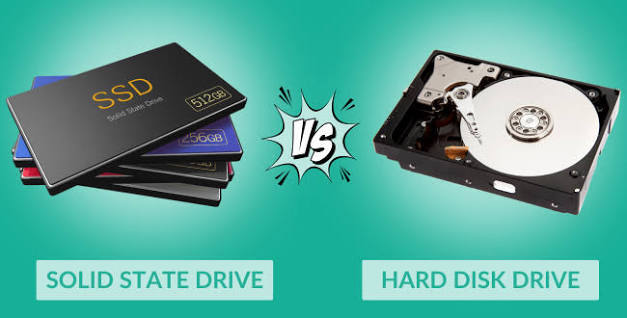
In this article, we’ll compare SSDs and HDDs, explain their differences, and show you how upgrading to an SSD can breathe new life into your old laptop.
What Is an HDD?
A Hard Disk Drive (HDD) is a traditional storage device that stores data on spinning magnetic disks (platters). A mechanical read/write head moves across the disks to access information.
For many years, HDDs were the standard storage solution for laptops and desktop computers because they offered large storage capacities at relatively low prices.
Advantages of HDDs
- Lower cost per gigabyte
- Larger storage capacities
- Suitable for storing large media collections
- Widely available
Disadvantages of HDDs
- Slower read and write speeds
- Longer boot times
- Mechanical parts that can wear out over time
- More susceptible to damage from drops or shocks
- Higher power consumption than SSDs
What Is an SSD?
A Solid State Drive (SSD) stores data on flash memory chips instead of spinning disks. Since it has no moving mechanical parts, it can access data much more quickly than an HDD.
Modern laptops increasingly use SSDs as standard because they provide faster performance, better durability, and improved energy efficiency.
Advantages of SSDs
- Extremely fast boot times
- Faster application loading
- Quicker file transfers
- Silent operation
- Better durability
- Lower power consumption
- Improved battery life in laptops
Disadvantages of SSDs
- Higher cost per gigabyte than HDDs
- Very high-capacity SSDs can be more expensive
SSD vs HDD: Key Differences
| Feature | SSD | HDD |
|---|---|---|
| Speed | Much Faster | Slower |
| Boot Time | Usually 10–20 seconds | Often 1–3 minutes on older systems |
| Moving Parts | None | Yes |
| Noise | Silent | Audible spinning and clicking |
| Durability | More resistant to shocks | More vulnerable to physical damage |
| Power Consumption | Lower | Higher |
| Cost per GB | Higher | Lower |
For most users, the speed improvements of an SSD outweigh the additional cost.
How an SSD Makes an Old Laptop Faster
Faster Startup
One of the first improvements you’ll notice is boot speed.
An old laptop that previously took several minutes to start may boot in less than 20 seconds after installing an SSD, depending on the hardware and operating system.
Quicker Application Launch
Programs such as:
- Microsoft Office
- Google Chrome
- Adobe Photoshop
- Visual Studio Code
- Zoom
open much faster when installed on an SSD.
This saves time and improves productivity.
Better Multitasking
Although RAM primarily affects multitasking, an SSD helps by allowing Windows or other operating systems to access temporary files much more quickly.
As a result, switching between applications feels smoother.
Faster File Transfers
Copying large files, installing software, and updating applications all become significantly faster with an SSD.
This is especially useful if you regularly work with documents, videos, or project files.
Improved System Responsiveness
An SSD reduces delays throughout the operating system.
Everyday activities such as:
- Opening folders
- Searching for files
- Installing updates
- Browsing photos
feel much more responsive.
Which SSD Should You Choose?
Before buying an SSD, check which type your laptop supports.
SATA SSD
Most older laptops use a 2.5-inch SATA drive.
A SATA SSD is the easiest upgrade and provides a dramatic improvement over a traditional HDD.
M.2 SATA SSD
Some newer laptops support M.2 SATA SSDs, which are smaller but offer performance similar to standard SATA SSDs.
NVMe SSD
Many modern laptops support NVMe SSDs.
These drives are considerably faster than SATA SSDs because they use the PCIe interface.
Always verify compatibility before purchasing.
Is Replacing an HDD Difficult?
For many laptops, replacing the storage drive is a straightforward process.
Typical steps include:
- Back up important files.
- Turn off the laptop.
- Remove the existing HDD.
- Install the SSD.
- Reinstall the operating system or clone the existing drive.
- Restore your files.
If you’re uncomfortable opening your laptop, a qualified technician can usually perform the upgrade quickly.
Should You Upgrade RAM Too?
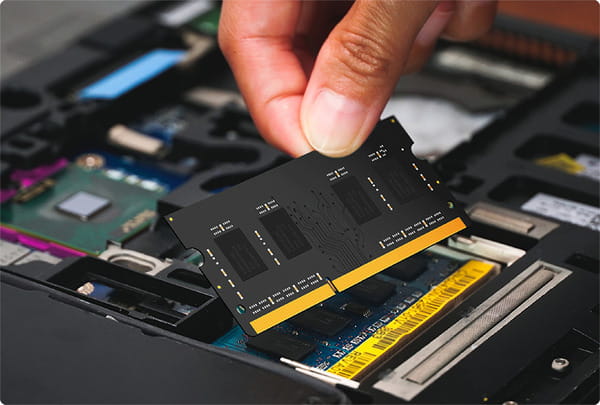
If your laptop has only 4 GB of RAM, upgrading to 8 GB or 16 GB alongside an SSD can provide an even better performance boost.
For older laptops, the combination of:
- SSD
- Additional RAM
often delivers the best value for money.
Who Should Upgrade to an SSD?
An SSD upgrade is ideal for users who:
- Have an older laptop with an HDD.
- Experience slow startup times.
- Use office applications daily.
- Browse the internet frequently.
- Attend online classes.
- Work remotely.
- Perform basic photo editing or programming.
Even laptops that are five to eight years old can become much more enjoyable to use after switching to an SSD.
When an SSD Alone May Not Be Enough
Although an SSD significantly improves performance, it cannot solve every hardware limitation.
If your laptop has:
- A very old processor
- Insufficient RAM
- Overheating issues
- Failing hardware components
additional upgrades or replacement may eventually be necessary.
Common Mistakes to Avoid
When upgrading to an SSD, avoid these common mistakes:
- Buying an incompatible SSD type.
- Forgetting to back up important data.
- Choosing the cheapest drive from an unknown brand.
- Ignoring firmware or BIOS updates if required.
- Reusing a failing hard drive without copying essential files first.
Research your laptop model before purchasing any hardware.
Tips for Maintaining SSD Performance
After installing an SSD:
- Keep at least 15–20% free storage space.
- Update your operating system regularly.
- Avoid unnecessary software running at startup.
- Install trusted antivirus software.
- Store large archive files on external storage if needed.
Proper maintenance helps your SSD perform efficiently for many years.
Conclusion
If your old laptop feels slow, replacing its hard disk drive with a solid state drive is one of the most effective and affordable upgrades you can make. Compared to an HDD, an SSD offers dramatically faster boot times, quicker application launches, smoother multitasking, and improved overall responsiveness. For many users, the difference is noticeable immediately after installation.
When combined with sufficient RAM and regular system maintenance, an SSD can extend the useful life of your laptop by several years, saving you the cost of purchasing a new device. Before replacing your laptop, consider upgrading to an SSD—you may be surprised at how much faster your system becomes.
FAQs
1. Is an SSD faster than an HDD?
A. Yes. SSDs are significantly faster than HDDs because they use flash memory instead of mechanical spinning disks. This results in quicker boot times, faster application launches, and improved overall system responsiveness.
2. Will replacing an HDD with an SSD make my old laptop faster?
A. In most cases, yes. Upgrading from an HDD to an SSD is one of the most effective ways to improve the speed and responsiveness of an older laptop.
3. Can I keep my HDD after installing an SSD?
A. If your laptop has space for both drives or supports replacing the optical drive with a storage caddy, you may be able to use the SSD for your operating system and applications while keeping the HDD for additional file storage.
4. How much SSD storage do I need?
A. For most users, a 512 GB SSD provides a good balance between storage capacity and cost. If you mainly browse the web and use office applications, 256 GB may also be sufficient.
5. Should I upgrade RAM along with the SSD?
A. If your laptop has only 4 GB of RAM, upgrading to 8 GB or 16 GB in addition to installing an SSD can deliver an even greater performance improvement, particularly for multitasking and modern applications.