








India’s summer season can be extremely demanding on electronic devices. In many regions, temperatures regularly cross 40°C, and when combined with high humidity, dust, and frequent power fluctuations, laptops often struggle to stay cool. If you’ve noticed your laptop becoming unusually hot, the fan running continuously, or the system slowing down during summer, you’re not alone.
Overheating is one of the most common laptop issues during hot weather. While occasional warmth is normal, excessive heat can reduce performance, shorten hardware lifespan, and even lead to unexpected shutdowns.
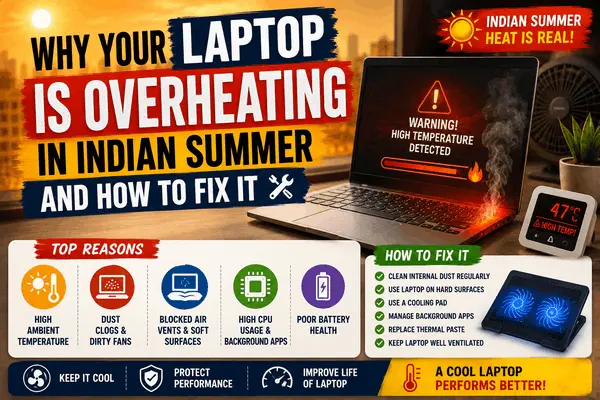
This article explains why laptops overheat during the Indian summer and provides practical solutions to keep your device running safely and efficiently.
Why Laptops Overheat More During Indian Summer
Laptops rely on airflow to dissipate heat generated by the processor (CPU), graphics processor (GPU), storage, and other internal components. During summer, the surrounding air is already warm, making it harder for the cooling system to remove heat.
Several factors contribute to overheating:
- High ambient temperatures
- Dust accumulation
- Blocked air vents
- Heavy workloads
- Poor ventilation
- Aging thermal paste
- Faulty cooling fans
Understanding the cause helps you choose the right solution.
Common Signs of Laptop Overheating
Watch for these warning signs:
- The laptop feels extremely hot.
- Cooling fans run continuously at high speed.
- Performance becomes noticeably slower.
- The keyboard or bottom panel becomes uncomfortable to touch.
- Unexpected shutdowns or restarts.
- Frequent application crashes during demanding tasks.
- Battery drains faster than usual.
If you notice several of these symptoms together, your laptop may be overheating.
1. High Room Temperature
During peak summer, room temperatures in many Indian homes can exceed 35°C, especially in rooms without air conditioning.
Because laptops cool themselves using surrounding air, hot ambient temperatures reduce cooling efficiency.
Fix
- Use the laptop in an air-conditioned room whenever possible.
- Improve room ventilation with a fan.
- Avoid using the laptop in direct sunlight.
- Keep the room temperature as low as practical.
Even a few degrees of temperature reduction can improve cooling performance.
2. Dust Blocking Airflow
Dust is one of the biggest causes of overheating in India.
Fine dust particles enter the laptop through cooling vents and gradually accumulate around the fan and heatsink.
This restricts airflow and traps heat inside the laptop.
Fix
- Clean the ventilation openings every few months using compressed air.
- Wipe the exterior regularly with a microfiber cloth.
- If overheating persists despite external cleaning, consider professional internal cleaning.
A clean cooling system allows heat to escape more effectively.
3. Using the Laptop on Soft Surfaces
Many people use laptops on:
- Beds
- Pillows
- Blankets
- Sofas
These surfaces block the cooling vents located underneath many laptops.
Fix
Always place your laptop on:
- A desk
- A table
- A laptop stand
- Any hard, flat surface
This allows proper airflow beneath the device.
4. Running Too Many Heavy Applications
Modern applications such as:
- Video editing software
- 3D design tools
- Gaming
- Programming IDEs
- Virtual machines
place heavy demands on the CPU and GPU, generating significant heat.
Fix
- Close unnecessary applications.
- Limit background processes.
- Restart the laptop regularly.
- Monitor CPU usage through Task Manager (Windows) or Activity Monitor (macOS).
Reducing unnecessary workload helps lower temperatures.
5. Outdated Software or Drivers
Software bugs or outdated drivers can sometimes cause excessive processor usage.
This forces the CPU to work harder, generating more heat.
Fix
Keep the following updated:
- Operating system
- Graphics drivers
- Chipset drivers
- BIOS or firmware (if recommended by the manufacturer)
Updates often include performance and thermal management improvements.
6. Old Thermal Paste
Thermal paste transfers heat from the processor to the heatsink.
Over time, it dries out and becomes less effective.
This is more common in laptops that are several years old.
Fix
If your laptop is three to five years old and frequently overheats despite cleaning, replacing the thermal paste may help.
This task is best performed by an experienced technician.
7. Faulty Cooling Fan
A damaged or failing cooling fan cannot remove heat efficiently.
Signs include:
- Grinding noises
- Fan not spinning
- Very weak airflow
- Sudden temperature spikes
Fix
If the fan is malfunctioning, it should be inspected and replaced with a compatible part by a qualified service technician.
8. Battery Heating Issues
Older laptop batteries can generate additional heat during charging.
Excessive battery heating may also indicate battery wear.
Fix
- Use only the original or manufacturer-approved charger.
- Avoid covering the charging adapter.
- If the battery becomes unusually hot or shows signs of swelling, stop using the laptop and have the battery replaced immediately.
Use a Laptop Cooling Pad
Cooling pads include external fans that improve airflow beneath the laptop.
Benefits include:
- Lower operating temperatures
- Better airflow
- More comfortable usage during heavy workloads
Cooling pads are especially useful for gaming, programming, video editing, and long work sessions.
Adjust Power Settings
High-performance power modes often increase processor speed and heat generation.
For routine tasks such as web browsing or document editing, consider using:
- Balanced Mode (Windows)
- Optimized battery settings (macOS)
These modes reduce unnecessary processor activity and improve thermal efficiency.
Keep Storage Clean
A nearly full SSD or hard drive can slow down your system.
Although storage isn’t a direct cause of overheating, sluggish performance may keep the processor busy for longer periods.
Maintain:
- At least 15–20% free storage space.
- Regular file cleanup.
- Removal of unused software.
When to Seek Professional Help
Professional servicing is recommended if:
- The laptop shuts down unexpectedly.
- Temperatures remain extremely high after cleaning.
- The fan produces unusual noises.
- Airflow remains weak.
- Performance drops significantly despite basic troubleshooting.
A technician can clean internal components, inspect the cooling system, and replace faulty parts if necessary.
Common Mistakes to Avoid
Avoid these practices:
- Blocking ventilation openings.
- Using the laptop inside a closed bag while powered on.
- Exposing the device to direct sunlight.
- Ignoring loud fan noise.
- Using non-original chargers.
- Delaying internal servicing when overheating becomes persistent.
Small maintenance habits can prevent expensive repairs later.
Tips to Keep Your Laptop Cool During Summer
Follow these simple habits:
- Clean air vents regularly.
- Work in a cool, ventilated room.
- Keep the laptop on a hard surface.
- Close unused applications.
- Update software regularly.
- Use a cooling pad for demanding tasks.
- Schedule periodic professional servicing for older laptops.
Preventive maintenance is often more effective than fixing overheating after it becomes severe.
Conclusion
Laptop overheating is a common problem during the Indian summer, but it can usually be managed with proper care and maintenance. High temperatures, dust, blocked vents, heavy workloads, and aging cooling components all contribute to rising internal temperatures. By improving airflow, cleaning the cooling system, using your laptop on hard surfaces, and keeping software up to date, you can significantly reduce the risk of overheating.
If your laptop continues to overheat despite these measures, professional servicing may be necessary to inspect the cooling fan, replace thermal paste, or address hardware issues. Taking timely action not only improves performance but also extends the lifespan of your laptop, helping it stay reliable throughout the hottest months of the year.
FAQs
1. Why does my laptop overheat more during the Indian summer?
High ambient temperatures reduce the cooling system’s ability to dissipate heat. Dust, blocked air vents, and heavy workloads further increase internal temperatures.
2. Is it safe to use a laptop for long hours during summer?
Yes, provided the laptop has adequate airflow, is kept in a well-ventilated environment, and is regularly cleaned to prevent dust buildup.
3. Can dust really cause overheating?
Yes. Dust restricts airflow through the cooling system, causing the processor and other components to retain more heat.
4. Do laptop cooling pads actually work?
Cooling pads can improve airflow and help reduce operating temperatures, particularly during resource-intensive activities such as gaming, video editing, or software development.
5. When should I take my laptop to a service center?
If your laptop continues to overheat after basic cleaning, shuts down unexpectedly, has a noisy or non-functioning fan, or becomes excessively hot during normal use, it’s advisable to have it inspected by a qualified technician.