Your home Wi-Fi router is the gateway to the internet for every connected device in your house. Smartphones, laptops, smart TVs, security cameras, gaming consoles, and even smart home appliances rely on it for internet access. Because the router sits at the center of your home network, it is also a common target for cybercriminals.
If a hacker gains access to your Wi-Fi router, they may be able to monitor internet activity, steal sensitive information, redirect you to malicious websites, or use your network for illegal activities. Fortunately, protecting your home Wi-Fi router doesn’t require advanced technical knowledge. By following a few security best practices, you can significantly reduce the risk of unauthorized access.
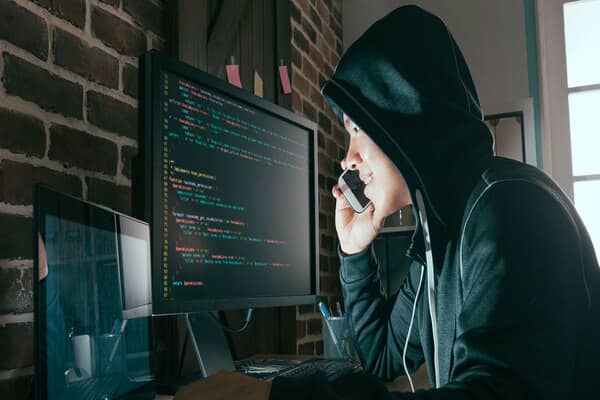
This guide explains how hackers target Wi-Fi routers and the practical steps you can take to keep your home network secure.
Why Router Security Is Important
Every device connected to your Wi-Fi depends on the router for internet access. If the router is compromised, attackers could potentially affect every connected device.
Possible risks include:
- Unauthorized access to your Wi-Fi network
- Slower internet speeds due to unknown users
- Theft of personal information
- Malware infections
- DNS hijacking that redirects you to fake websites
- Access to insecure smart home devices
Securing your router is one of the most important steps in protecting your digital privacy.
Change the Default Administrator Password
Many routers are shipped with default administrator usernames and passwords.
If these credentials remain unchanged, attackers may be able to access the router’s settings using publicly available default login information.
What to Do
- Log in to your router’s administration page.
- Change the default administrator password immediately.
- Create a strong password using a combination of uppercase and lowercase letters, numbers, and special characters.
- Avoid using personal information such as birthdays or names.
Keep the administrator password different from your Wi-Fi password.
Use WPA3 or WPA2 Encryption
Wireless encryption protects data transmitted between your devices and the router.
Whenever possible:
- Enable WPA3 security.
- If WPA3 is unavailable, use WPA2-AES.
Avoid outdated security options such as:
- WEP
- WPA (original version)
These older protocols have known security weaknesses and should no longer be used.
Create a Strong Wi-Fi Password
A weak Wi-Fi password makes it easier for attackers to gain access through guessing or automated attacks.
Choose a password that:
- Contains at least 12–16 characters
- Uses letters, numbers, and symbols
- Does not contain dictionary words
- Is unique to your home network
Avoid simple passwords such as:
- 12345678
- password
- yourname123
A strong password is one of the most effective security measures.
Update Router Firmware Regularly
Router manufacturers release firmware updates to:
- Fix security vulnerabilities
- Improve stability
- Add new features
- Enhance performance
Older firmware may contain known security flaws that hackers can exploit.
How to Update
- Log in to the router’s administration panel.
- Check for firmware updates.
- Install updates from the official manufacturer.
Some modern routers support automatic firmware updates, which should be enabled if available.
Change the Default Network Name (SSID)
Many routers use factory-default network names that reveal the router model or manufacturer.
Changing the SSID makes it slightly more difficult for attackers to identify your router type.
Choose a neutral name that doesn’t include:
- Your full name
- House number
- Apartment number
- Personal information
For example, avoid names like “SharmaFamilyWiFi” or “Flat12Network.”
Disable WPS
Wi-Fi Protected Setup (WPS) allows devices to connect using a PIN or button press.
Although convenient, the PIN-based version of WPS has known security weaknesses.
If you don’t actively use WPS:
- Disable it in the router settings.
This removes a potential attack vector.
Enable the Router Firewall
Many modern routers include a built-in firewall that filters suspicious network traffic.
Verify that the firewall is enabled.
A firewall helps:
- Block unauthorized connections
- Reduce exposure to common internet attacks
- Improve overall network security
Monitor Connected Devices
Periodically review the list of devices connected to your Wi-Fi network.
Look for:
- Unknown smartphones
- Unrecognized laptops
- Unexpected smart devices
If you find an unfamiliar device:
- Change your Wi-Fi password.
- Reconnect only your trusted devices.
Regular monitoring helps detect unauthorized access early.
Disable Remote Administration
Some routers allow configuration over the internet through remote management features.
Unless you specifically need this functionality:
- Turn off remote administration.
Limiting router management to your local network significantly reduces exposure to external attacks.
Create a Guest Network
Visitors often request Wi-Fi access.
Instead of sharing your primary network:
- Enable a guest Wi-Fi network.
Benefits include:
- Better privacy
- Separate access for visitors
- Reduced risk to your personal devices
- Easier password changes
Many modern routers support isolated guest networks by default.
Position Your Router Carefully
Wi-Fi signals extend beyond your home’s walls.
To reduce unnecessary signal exposure:
- Place the router near the center of your home.
- Avoid positioning it next to windows whenever possible.
- Keep it elevated for better coverage.
Although this won’t stop determined attackers, it can reduce signal leakage outside your property.
Use Secure DNS Services
Some cyberattacks involve manipulating DNS settings to redirect users to fraudulent websites.
Using a trusted DNS provider can improve security and browsing reliability.
Many routers allow you to manually configure DNS settings.
Always use reputable DNS providers recommended by trusted organizations.
Restart Your Router Occasionally
Rebooting your router periodically can:
- Improve stability
- Install pending updates on some models
- Clear temporary network issues
While restarting alone doesn’t improve security, it supports overall network health.
Common Mistakes to Avoid
Many users unintentionally weaken router security.
Avoid these mistakes:
- Keeping factory-default passwords.
- Ignoring firmware updates.
- Using outdated encryption.
- Sharing Wi-Fi passwords with everyone.
- Leaving WPS enabled unnecessarily.
- Ignoring unknown connected devices.
- Enabling remote administration without a genuine need.
Simple changes can greatly improve network security.
Additional Tips for Better Home Network Security
Protecting your router is only one part of securing your home network.
Also:
- Keep your operating systems updated.
- Use reputable antivirus software.
- Enable two-factor authentication on important online accounts.
- Avoid clicking suspicious email links.
- Regularly back up important data.
Good cybersecurity habits complement router security.
Conclusion
Your home Wi-Fi router is one of the most important devices in your digital life. A compromised router can expose your personal information, connected devices, and online activities to unnecessary risks. Fortunately, securing your router doesn’t require advanced technical skills. By changing default passwords, using WPA3 or WPA2 encryption, updating firmware, disabling unnecessary features like WPS and remote administration, and monitoring connected devices, you can significantly strengthen your network’s security.
Cyber threats continue to evolve, but regular maintenance and good security practices go a long way in protecting your home network. Taking a few minutes to review your router’s settings today can help safeguard your devices and personal data for years to come.
FAQs
1. How do I know if someone is using my Wi-Fi without permission?
A. Signs may include slower internet speeds, unfamiliar devices appearing in your router’s connected device list, or unusual network activity. Checking your router’s administration page can help identify unknown devices.
2. Is WPA3 better than WPA2?
A. Yes. WPA3 offers stronger encryption and improved protection against password-guessing attacks. If your router and devices support WPA3, it is generally the preferred option. Otherwise, WPA2-AES remains a secure choice.
3. How often should I update my router’s firmware?
A. Check for firmware updates every few months or enable automatic updates if your router supports them. Installing updates promptly helps protect against newly discovered security vulnerabilities.
4. Should I leave WPS enabled?
A. If you don’t actively use WPS, it’s best to disable it. This removes a feature that has been associated with security weaknesses on some router models.
5. Is changing the Wi-Fi password enough to stop hackers?
A. Changing the Wi-Fi password is an important step, but it should be combined with other security measures such as updating firmware, using WPA3 or WPA2 encryption, changing the administrator password, disabling unnecessary features, and monitoring connected devices regularly.